Showing posts with label Configuration. Show all posts

Wednesday, July 7, 2010

Hiding List columns in newsform.aspx/editform.aspx/dispform.aspx

Open newform.aspx

To get webpart properties to panel add below command to URL

http://sharepointkings/... /Lists/Demo/NewForm.aspx?RootFolder...&Source=…&ToolPaneView=2

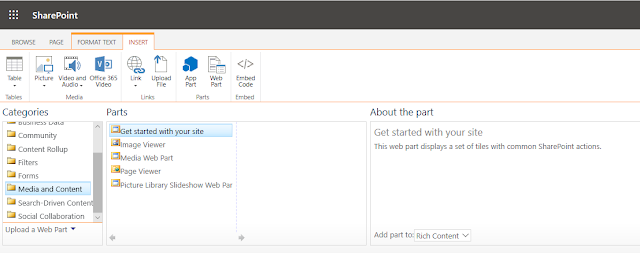
Add Content Editor webpart

open source editor and add below code


repalce HideField("Workspace"); with your filed name like HideField("Due Date");

cehck now....

Reference:

http://www.sharepointkings.com/2009/10/hiding-field-in-sharepoint-through.html
http://www.sharepointkings.com/2008/05/how-to-hide-column-of-sharepoint-list.html
http://www.sharepointkings.com/2008/05/how-to-edit-list-forms-like-newformaspx.html

Friday, June 18, 2010

Enabling RSS Feed in sharepoint Site

To use RSS Feeds with lists and libraries, first, make sure RSS Feeds are enabled for your site, and then enable the feed for the list or library. To do this:
1. Click the Site Actions menu on your site, and then click Site Settings (if you don’t see a Site Actions menu, then you may not permissions to the site. Ask your site administrator for help).
2. Click RSS under Site Administration.
3. Make sure the Allow RSS Feeds in this site checkbox is checked.
4. Next, open the list or library for which you want to share an RSS feed.
5. Click Settings, and then click List Settings or Library Settings.
6. Under Communications, click RSS Settings.
7. Make sure that Yes is chosen for Allow RSS for this list.
8. Fill in a title, description, and even an URL to an image to appear in the RSS feed if you like. You can also choose the columns from the list or library you want to display in the RSS Feed. For example, you can choose to include the Body column of an Announcements list.
9. When you’re done, click OK

Disable or removing advaced search option from default Sharepoint Search Control

1)Go to 12 hive

C:\Program Files\Common Files\Microsoft Shared\web server extensions\12\TEMPLATE\FEATURES
2)Find OSearchEnhancedFeature Folder
3)In that folder you can find SearchArea.xml,double click on that ,You can see bellow code


By default it is True ,Change that to False as like shown in image.

4)Restart IIS
5)Go and check in the website you can find Search Control with out Advaced Search Option.

Content Editor Webpart not showing up in SharePoint Online ------------------------------------------------------------------------------...